
Use it · 5 of 9
Files
Files in ihasmail: uploading, moving and organizing files stored on your mail server, and attaching them to messages.
On this page
This page covers the files you keep in ihasmail: uploading them, organizing them, and attaching them to messages. Your files are stored on the mail server, alongside your mail.
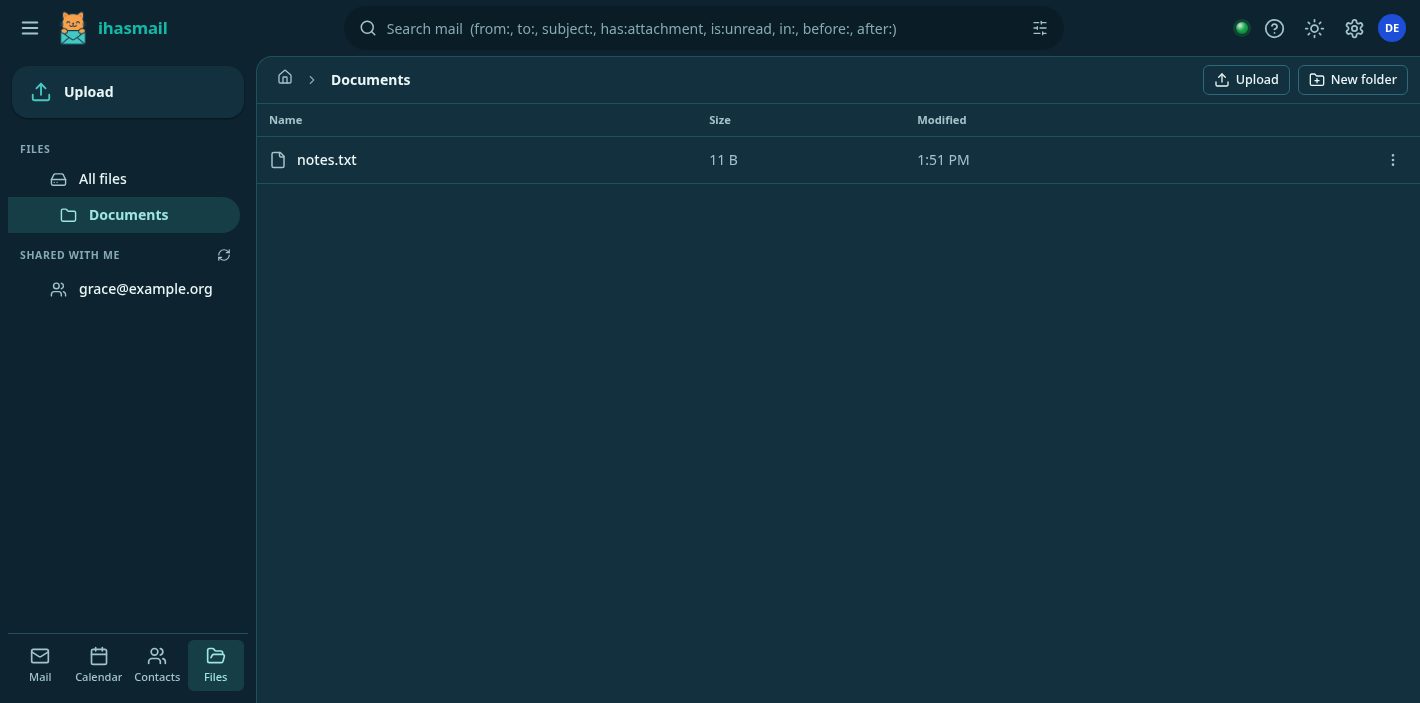
ihasmail folder holding settings and signature images is hidden, which is the note below.What you can do
- Browse folders
- Upload and download files
- Create folders
- Rename, move and delete files and folders
The folder tree is in the left pane. Opening a folder is instant, because the whole tree is loaded at once.
How it works
Files use the JMAP FileNode object, the file storage part of the JMAP
standard ihasmail uses to talk to Stalwart. The whole folder tree arrives
in one request, so opening a folder never waits on a round trip to the
server.
Dragging and dropping
- To move something, drag it onto a folder, either in the list or in the tree. A folder can't be dropped inside itself.
- To upload files, drag them in from your desktop.
- To upload a whole folder, drag the folder in. Its structure is kept, and subfolders are created as they are needed.
Attaching a file to a message
In a compose window, click the folder button to pick from your files.
Attaching a file that is already in Files needs no upload at all, however large it is.
A file from somebody else's shared folder is copied into your account first. The picker tells you before you attach it.
Why a shared file is copied first
A message can only carry files (blobs) from the account sending it. So a file that belongs to someone else's account has to be copied into yours before it can go out with your message.
The hidden ihasmail folder
One folder is left out of the list on purpose: ihasmail, and everything
in it. It holds your settings file and any images used in your signatures.
Why the folder's contents are hidden too
Hiding only the folder would have been worse than showing it. The tree places anything whose parent folder is missing at the top level, so the signature images would have spilled out into the root of your files.