
Use it · 4 of 9
Contacts
Contacts in ihasmail: address books, importing and exporting, choosing recipients, and adding people straight from a message.
On this page
This page covers keeping your contacts in ihasmail: address books, bringing contacts in from elsewhere, and picking people when you write a message.
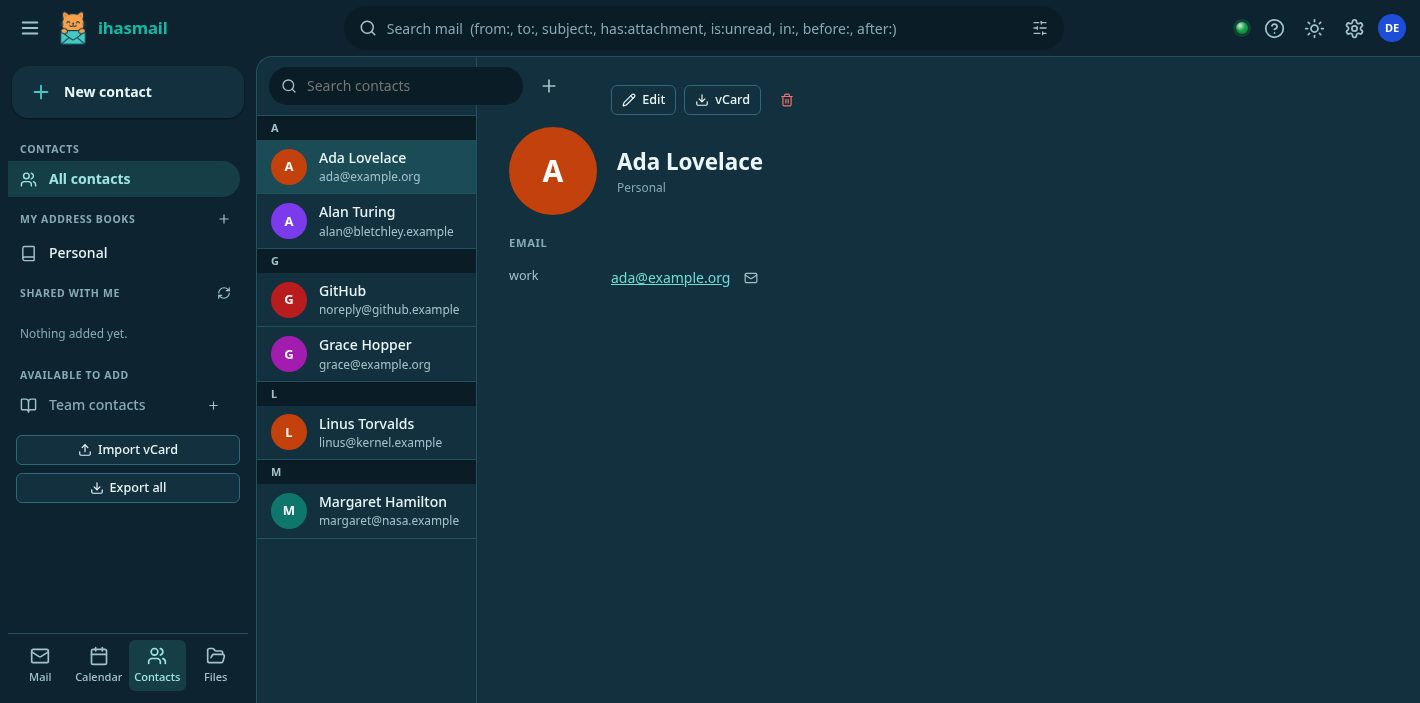
What a contact holds
A contact can have names, email addresses, phone numbers, postal addresses, an organization, a birthday, a photo and notes. You can also put contacts into groups.
You can have several address books, share them, and choose one as the default.
Your address books
Your address books are in the left pane, under My address books. Books other people have shared with you are listed separately below them.
Hover over a book and click ⋮, or right-click it, for:
- rename
- share
- import
- export
- empty
- delete
Adding someone from a message
Right-click anyone named in a message — the sender, or anyone in To, Cc, Bcc or Reply-To. From there you can:
- add them to your address book. The editor opens already filled in, with their display name split into first and last name.
- edit them, if they are already in your contacts.
- write to them.
- copy their address.
This is the part people most often miss.
Choosing recipients without typing
Typing a name in To finishes a name you already know. When you don't know it, browse instead:
- In a compose window, click the contacts button beside Cc and Bcc, or click the To label itself.
- Search across every address book, or narrow the list to one book.
- Tick as many people as the message needs.
- Send them to To, Cc or Bcc.
Each email address gets its own row. So for someone with a work address and a personal one, you choose which to use — ihasmail doesn't choose for you.
Contacts in a shared address book you have added are suggested when you type a name, just like your own. If the same person is in both, your own card wins, because a card you wrote yourself should beat a colleague's copy.
Importing contacts
ihasmail imports two kinds of file:
| Format | File endings | Where it usually comes from |
|---|---|---|
| vCard | .vcf, .vcard |
Most address book apps and phones |
| LDIF | .ldif, .ldi |
Other mail and groupware apps, and LDAP company directories |
There is only one Import option. ihasmail works out the format from what is inside the file, not from its name, so you never have to pick between "import vCard" and "import LDIF".
From an LDIF file, ihasmail brings across work and home addresses, every kind of phone number, a second email address, organization, job title, nickname and web pages.
How LDIF files are read
LDIF is a text format for directory entries, used by LDAP directories and by the address book exports of many mail and groupware apps. ihasmail reads the Mozilla address book schema, which is what such exports almost always use.
Importing the same file again fixes, it doesn't duplicate
If you import the same address book twice, the second import updates the contacts already there. It does not leave a second copy of everyone. That is deliberate: the usual reason to import again is that the first export was wrong.
- What the file contains wins.
- What the file doesn't mention is left alone. A phone number you added in ihasmail survives importing the original file again.
- Matching happens within one address book. Two directories that each contain a John Smith stay two people, as long as you import them into separate books.
How a contact is recognized
A vCard is matched by its UID, a unique id stored inside the card. An LDIF entry is matched by its distinguished name, the entry's full name in the directory.
Exporting contacts
Choose Export from an address book's menu to save its contacts as a vCard
file (.vcf). Books shared with you can be exported too.
Deleting contacts
Several contacts: tick them in the list, then delete them together. Shift-click to tick a whole run at once.
A whole address book's contents: use Empty address book from the book's menu. This keeps the book, its name and its sharing. Deleting the book removes all three.
A contact filed in two address books is only removed from the one you emptied.
Deleting cannot be undone
Both kinds of delete ask first and say how many contacts will go.